
MetaTool
Automatic indexing with OCR, rubber band OCR, keyword document separation, image redaction, clipping and more…

We refer to the CaptureBites MetaTool as our Swiss army knife. It turns Kofax Express into a powerful and intelligent data extraction and image editing software. You can use it to automate indexing with OCROCR stands for Optical Character Recognition and is a technique to convert a scanned image with machine printed text into data. and easy to configure rules.
You can separate documents based on keywords, reformat your index data, generate image clippings, cleanup & redact images, etc. The Validation client makes clever use of shortcuts, rubber band OCR, quick choice lists and database lookup to complete or correct data.
-
MetaTool functionality: press the buttons to learn more about each function

-
No coding but configuration
-
Enabling MetaTool
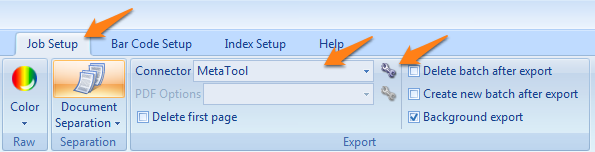
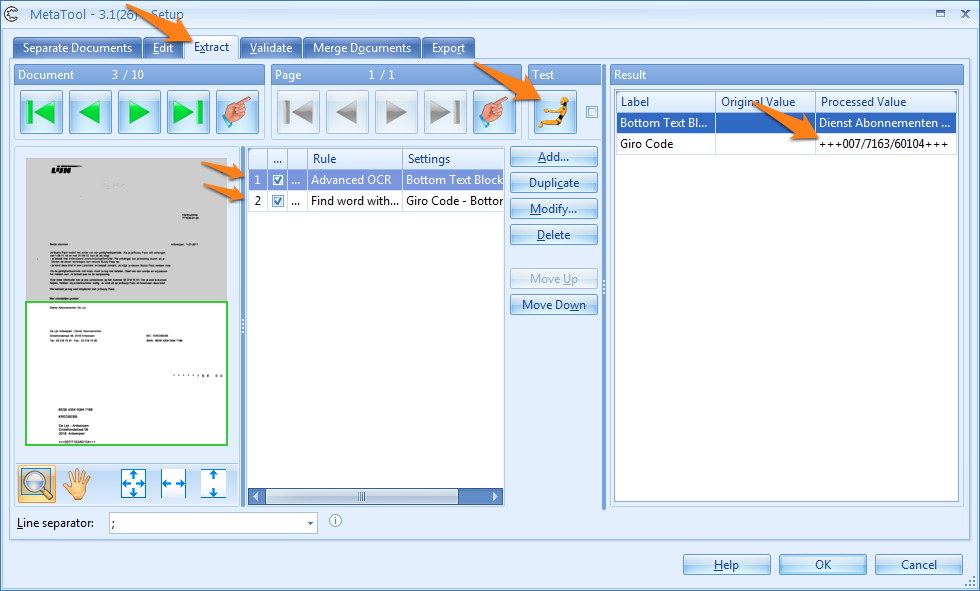
Short explanation of the MetaTool setup screen below
- The MetaTool setup shows the images of your current batch in the left panel. You can navigate through all the images and use them to test your configuration. The green zone indicates the extraction zone. In our example, it is the bottom half of the page.
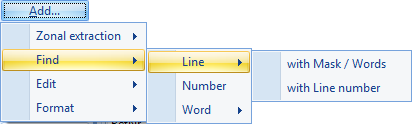
- The middle panel shows your extraction rules. You can add as many rules as required. MetaTool features 5 types of rules:
- Zonal extraction rules (a zone can be as large as the whole page)
- Find data rules
- Edit data rules
- Message rule (Show progress)
- Format data rules
- The right panel shows the index fields defined in Kofax Express. Pressing the Test button shows the result in the “Processed value” column.
-
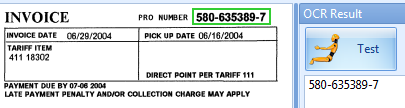
Automatic indexing with OCROCR stands for Optical Character Recognition and is a technique to convert a scanned image with machine printed text into real text.
-
Extracting floating data
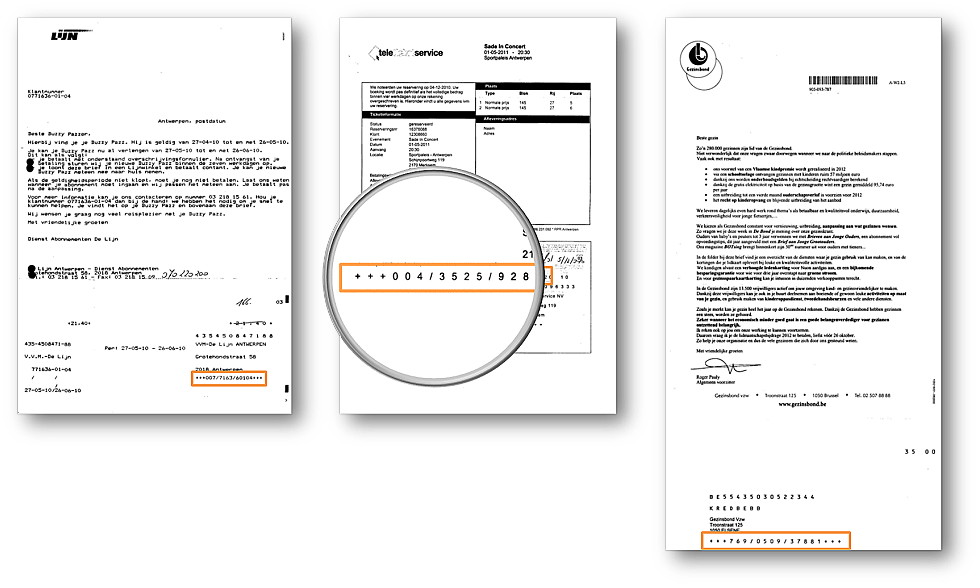
Below you can see how the Giro Code (a standardized Transation Code that describes the purpose of a European money transfer) is floating around in the bottom half of the page. In this case we will read the the full textreading the full text with OCR takes less than a second with a modern PC. of the bottom half of the page.
We will then extract the Giro Code based on its format. The standardized Giro Code consists of 3 groups of numbers separated by slashes and preceded and followed with 3 + signs. An example of a Giro Code is: +++004/3525/92888+++
-
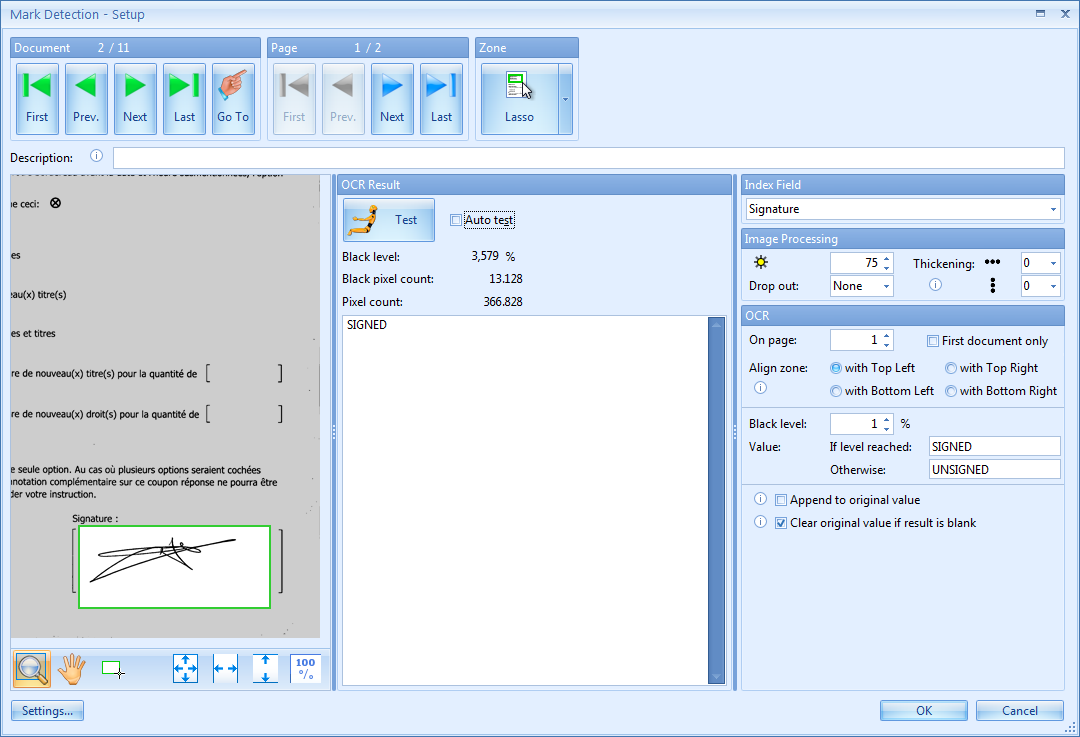
Signature & Mark Detection
-
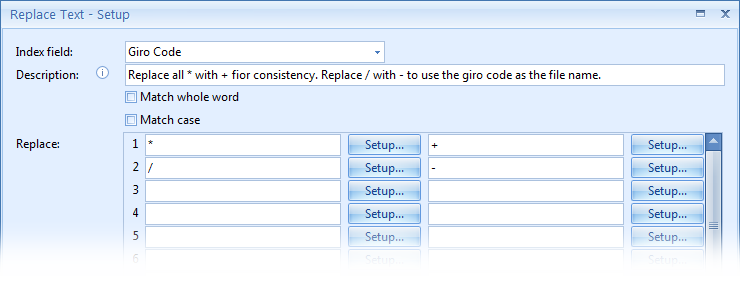
Reformat index data
You can also change extracted index data to uppercase to generate consistent output.
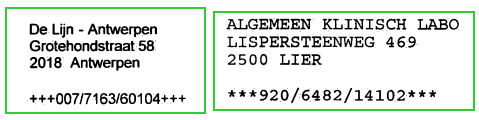
In our example, the Giro Code is sometimes preceded with +++ and sometimes with ***.
-
High speed data validation
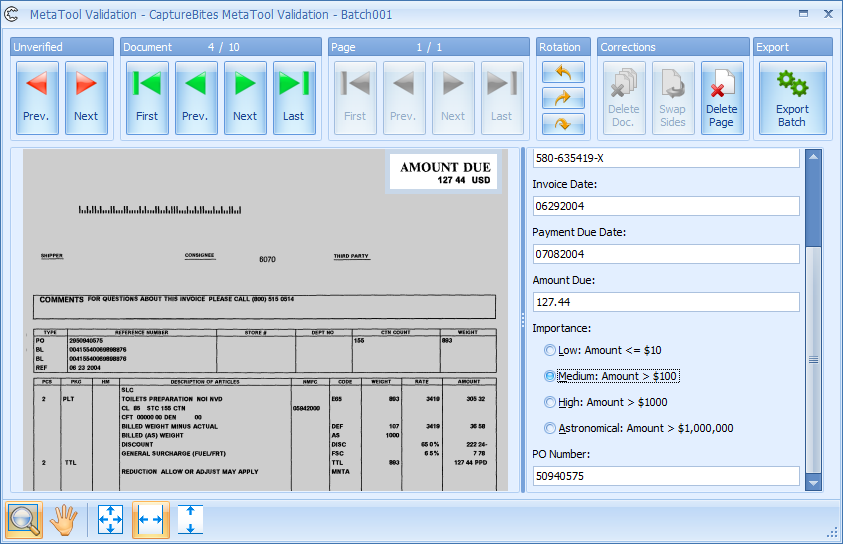
Through single letter shortcuts, any of the choices can be selected with a single key press. For very critical data, you can force the user to always check a field even if it passes the validation rules.
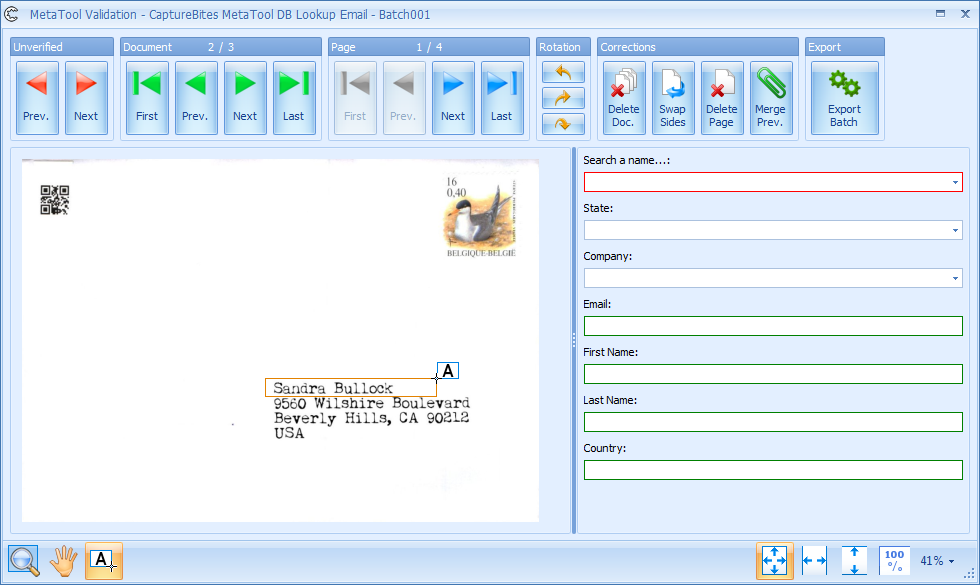
Use Database Lookup to complete other index fields efficiently and use Rubber band OCR to fill in data by drawing a rectangle around the information.
-
Database lookup
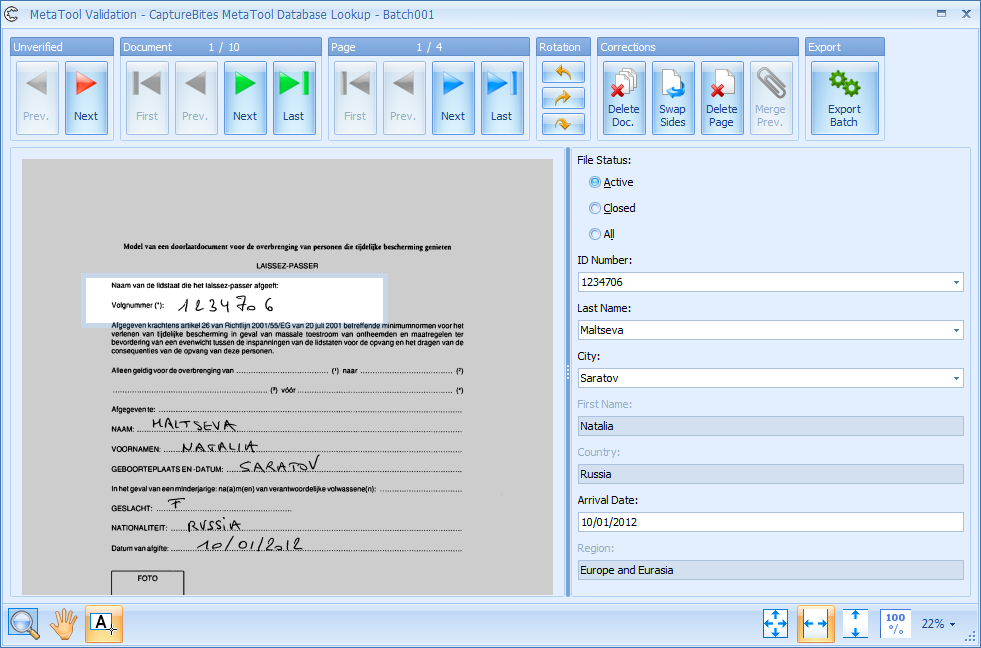
- Automatic lookup using extracted OCR data: For example extract the Tax ID (VAT Nr. ABN Nr,…) by means of MetaTool’s OCR and extraction rules and lookup the matching supplier name and email using database lookup.
- Multi Search Field lookup: Search a record through multiple lookup fields. For example search for a supplier by Tax ID, Name or Telephone number
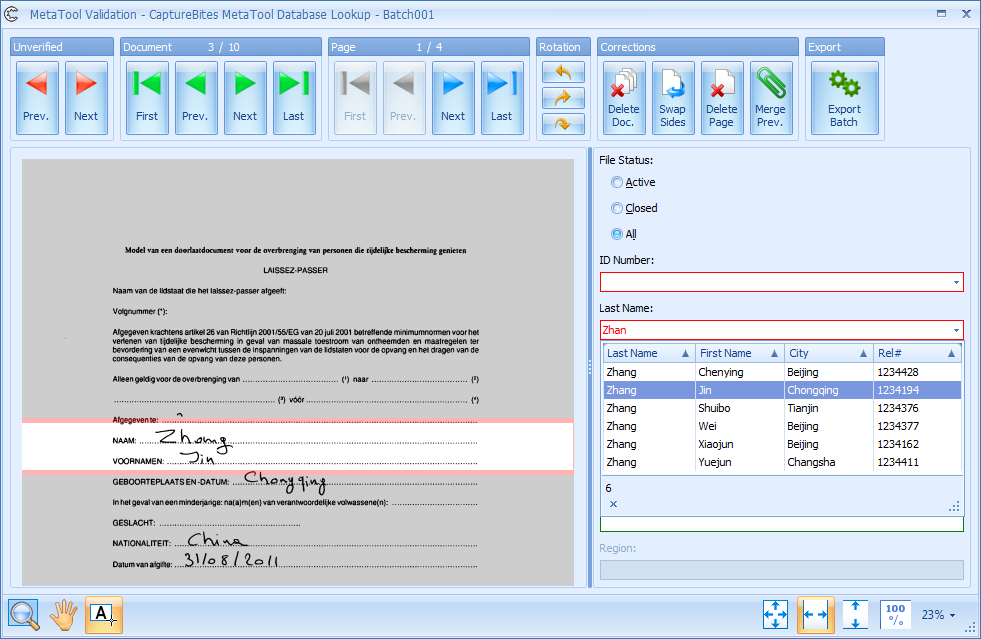
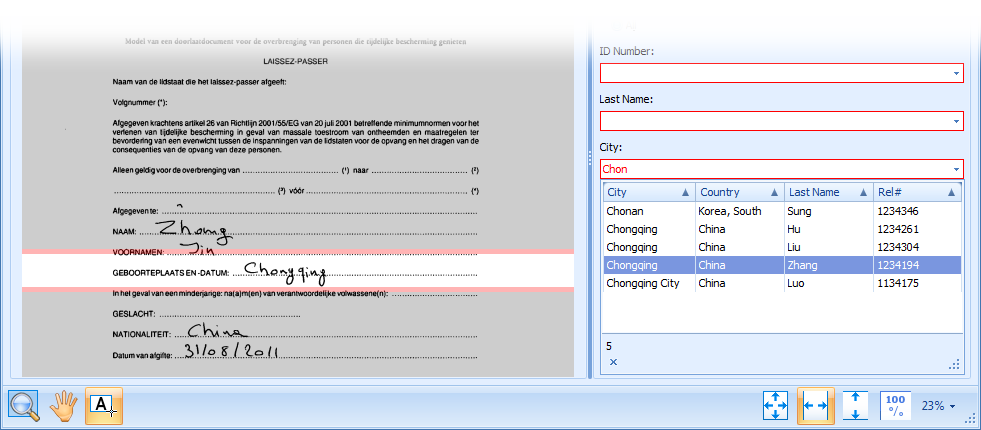
- Drill down search: This is similar to searching for an address in a GPS – Sat / Nav device by drilling down from country to city to street. In business applications, drill down searches are used to search large database of employees, customers or products. Every search step filters the number of possible matches. For example, search first for the state, then for a company in that state, then for a customer name in that company.
-
Rubber Band OCR
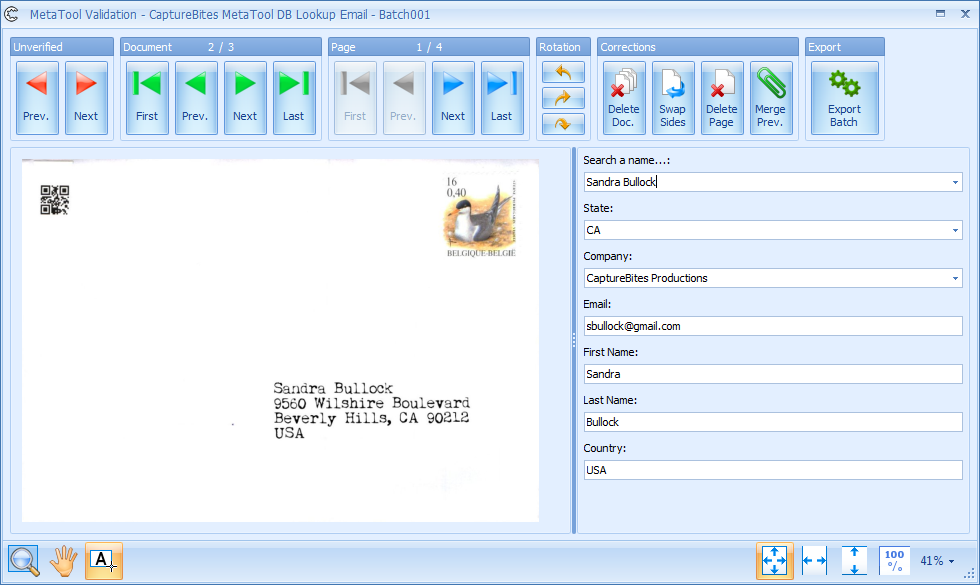
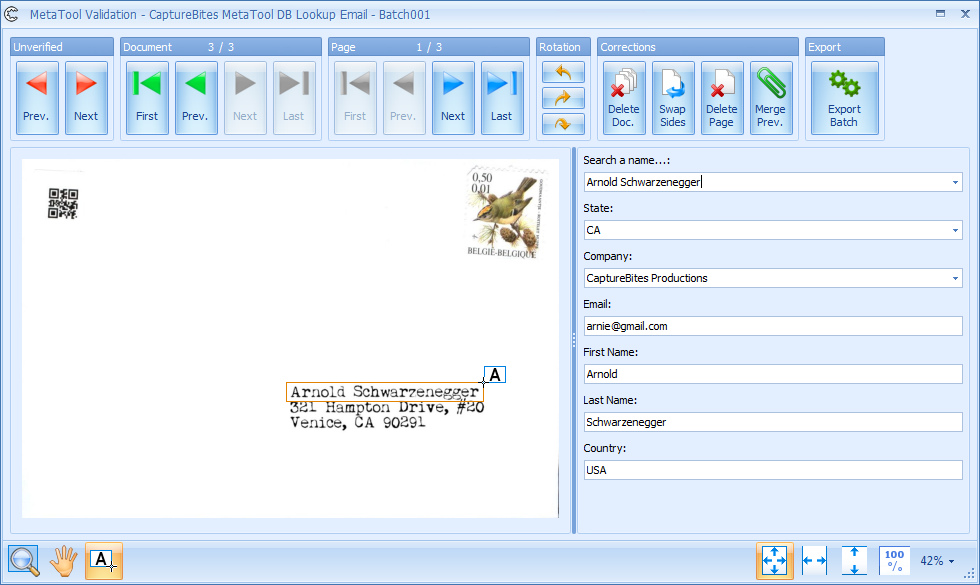
-
Keyword document separation
Kofax Express features automatic document separation using bar codes and patch codes. But what if your documents don’t have any bar codes or patch codes?
With keyword document separation you can use MetaTool to search for a specific page number (for example “1 of”), a form number or title in a specific place, keywords like “summary sheet”, a company name, etc.
When MetaTool finds the defined keyword(s) it triggers a document separation.
You can also separate on last page or use zonal bar code recognition to separate documents.

-
Merge documents with the same index field value
 If you have a batch of unsorted documents and you want to merge all documents with the same bar code value for example, then you can use MetaTool’s merge feature.
All documents with the same bar code value will be merged in a single document regardless where the documents are positioned in the batch.
-
High speed image editing, cleanup & redaction
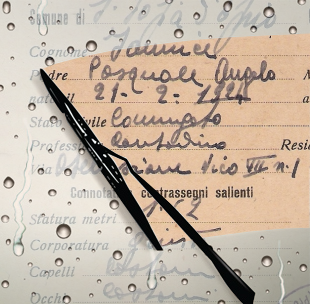
Redaction to erase sensitive or confidential information
Erase signatures or sensitive information from scanned images with the Erase Inside function. With automatic color detection, you can easily erases the selection with the surrounding background color. The Image Editor adjusts the erase color based on the place where you start drawing the selection. 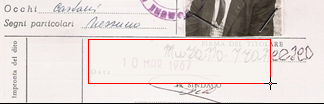
Cleanup rough edges of damaged or old documents
With the erase outside function, you can erase anything outside the selection. The erase color is automatically selected based on where you start drawing the selection.
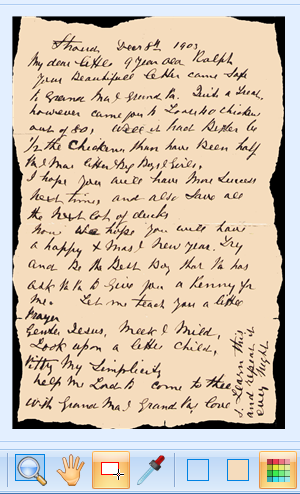 Irregular edges cannot be corrected by VRS auto-crop.
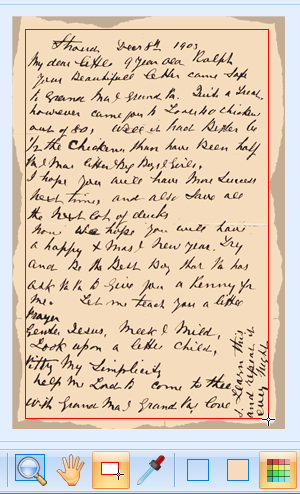 Just select the part you want to keep. Based on where you start drawing the erase color is automatically selected.
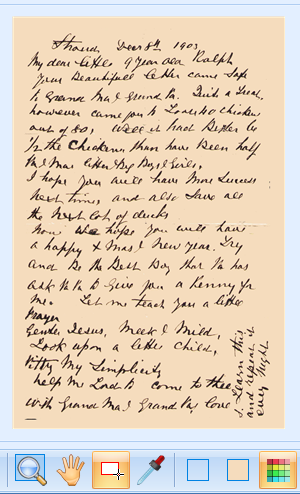 Release the mouse button and the area outside of the selection is filled with the correct color.
Crop part of an image.
Use the crop function when you need to crop photos to create security passes or store them in a database. Or if you want to store signature clippings in a signature verification database. In the MetaTool Image Editor setup, which can be configured per Kofax Express job, you can define a default selection size to obtain a consistent output size.
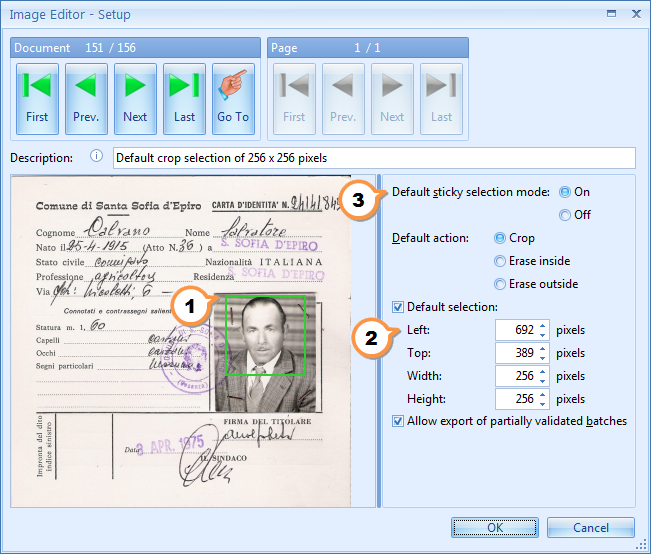
 The image editor’s setup, includes a viewer to draw the default selection. You can use any image of your current batch as sample image.
 For accurate work you can enter pixel precise dimension to define your default selection.
 We also enabled sticky selection mode to make the selection appear on every image automatically.
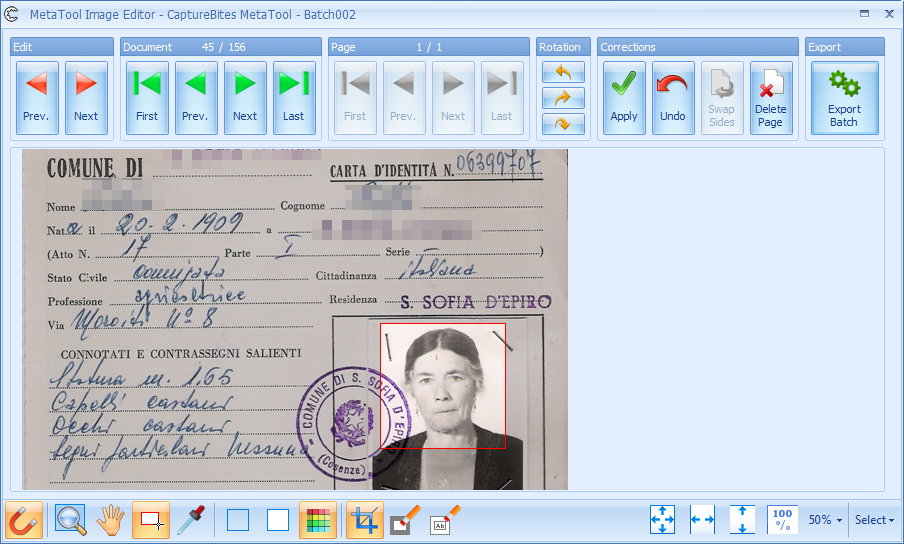
Then press the Apply button or press ENTER (for left handed people) or SPACE BAR (for right handed people) to apply the actual crop.
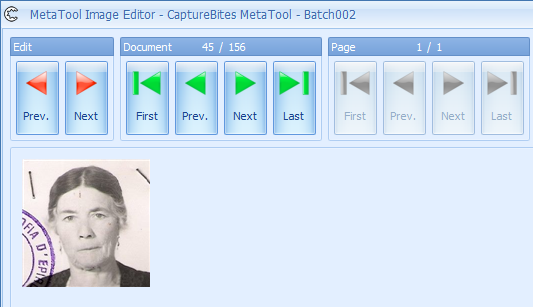
Next press ENTER or SPACE BAR again to move to the next image.
 Triple level undo
If you are not happy with the last action, press the undo button or press Backspace or CTRL+Z to undo the last action. A second undo clears the selection and a third undo restores the original image. You can apply triple level undo on any corrected image even after navigating away and back to it. Thanks to the undo function, there are no more annoying and inefficient “Are you really sure?” messages. If you make a mistake, just press the Backspace key.
-
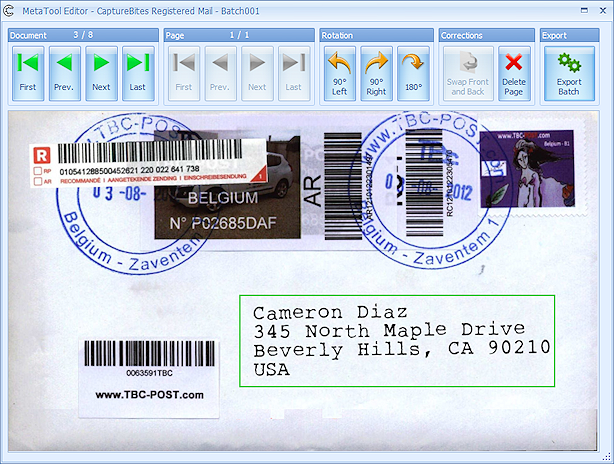
Generate Clippings
-
Platform for new functions
Thanks to its modular design based on a collection of simple Rules, the CaptureBites MetaTool will be regularly updated with new functionality. So visit this page often to check what’s new or contact us and let us know what you would like to see next in the CaptureBites MetaTool.
About the download and included demo jobs
The download button on top of this page installs a functional version of this CaptureBites product. It also includes some demo images and a demo job to show the functionality.
In demo mode, a demo seal will be stamped in all exported images. You can switch the demo version to full production mode by entering an activation code which you can purchase from our partners. You can continue using any of the jobs you configured in demo mode after activation of the software.
If you don't have Kofax Express yet, you can download a trial from here.