
Folder Export Connector
Define index, folder and file names, TIFF settings, PDF settings (bookmarks, password,…) and full text output.
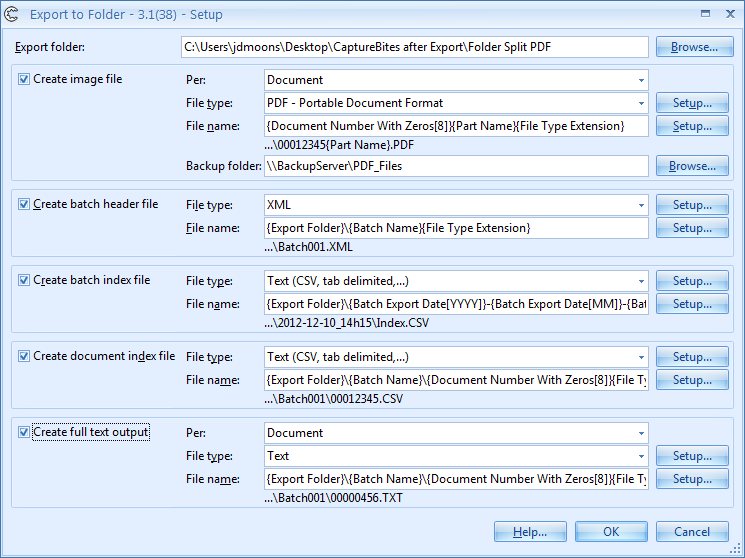
 Use the versatile CaptureBites Folder export connector to export to a folder structure of choice. You can define an unlimited number of sub folders and use Kofax Express index fields or system values to name them.
Generate full text output in standard txt format for each scanned page.
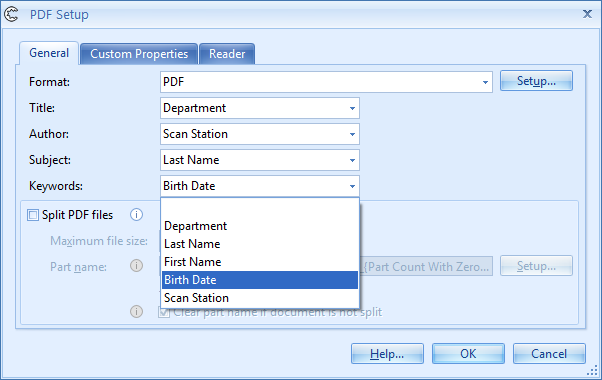
Create bookmarked PDF files, configure PDF passwords, split PDF files to a defined maximum size and set specific PDF properties.
If your back-end system only works with a specific kind of CSV or XML import file, you can make use of the custom XML / CSV setup and configure any index format you desire.
Next to an export destination of choice, you can also generate a backup of all your document files to an external drive or backup server. All this during a single export.
-
Output index data as XML, CSV, TXT output or any format you want
The Folder connector provides full flexibility regarding the content, naming and export location of your index files.
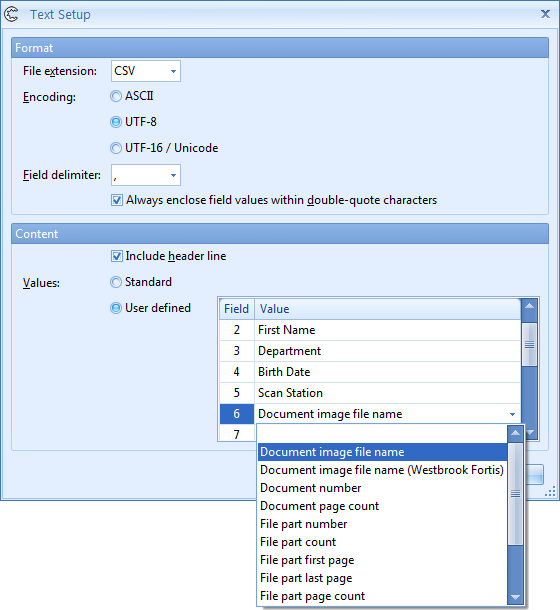
You can configure your CSV or TXT index files through an easy setup window (right)…
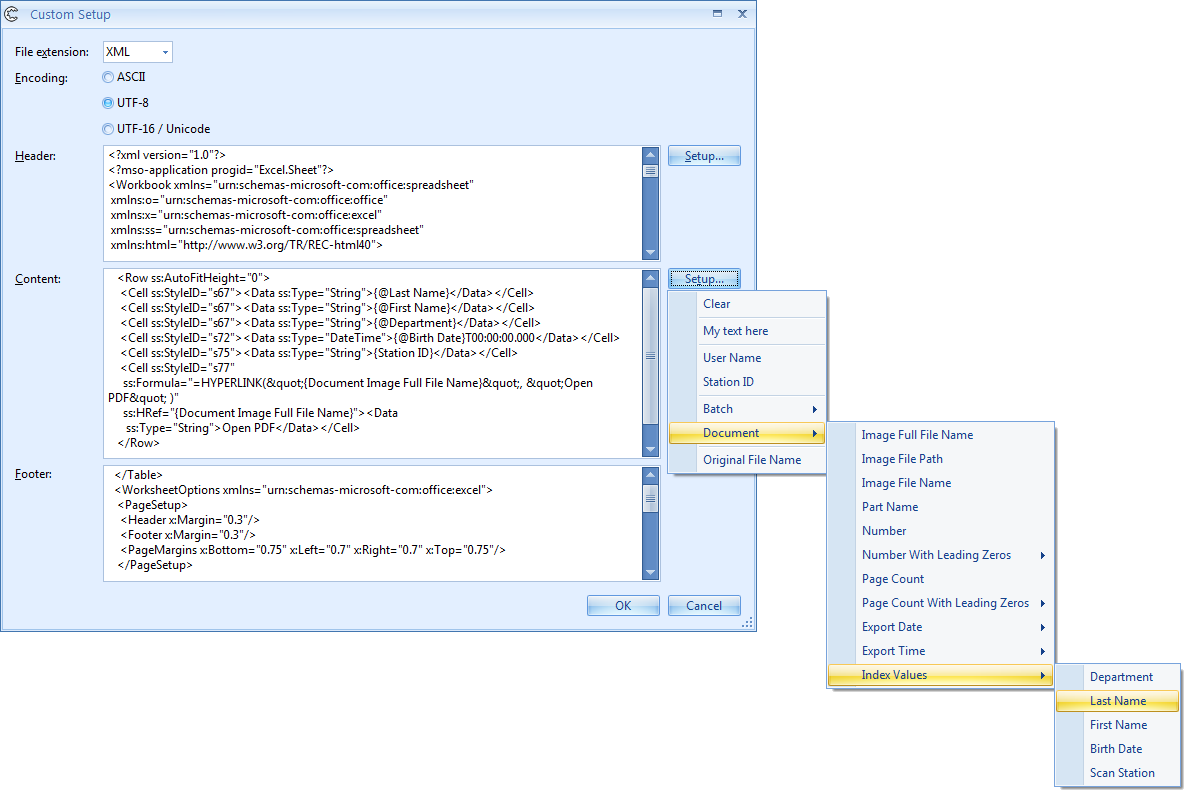
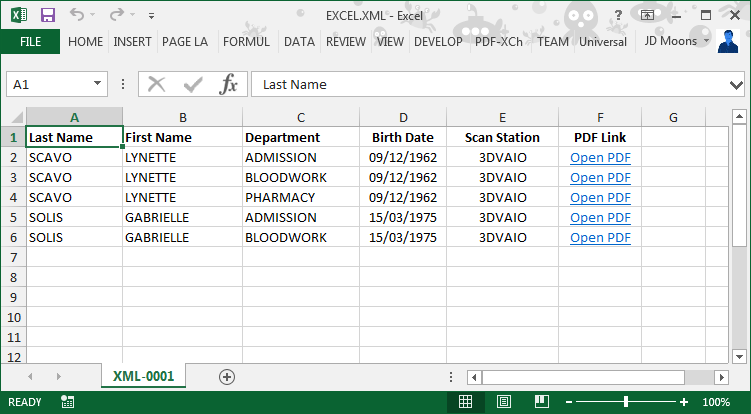 The XML opens in Excel fully formatted including hyperlinks, columns widths etc.
-
Create PDF files with XML metadata for M-Files with Kofax Express and the Folder connector
The Folder connector’s custom XML output can be used to generate XML output compatible with M-Files.
In M-Files, you create a new connection to an external file source in the M-Files Server Administrator. M-Files expects a PDF/XML file pair. The name of the files need to be identical. The xml file contains the metadata associated with the PDF file.
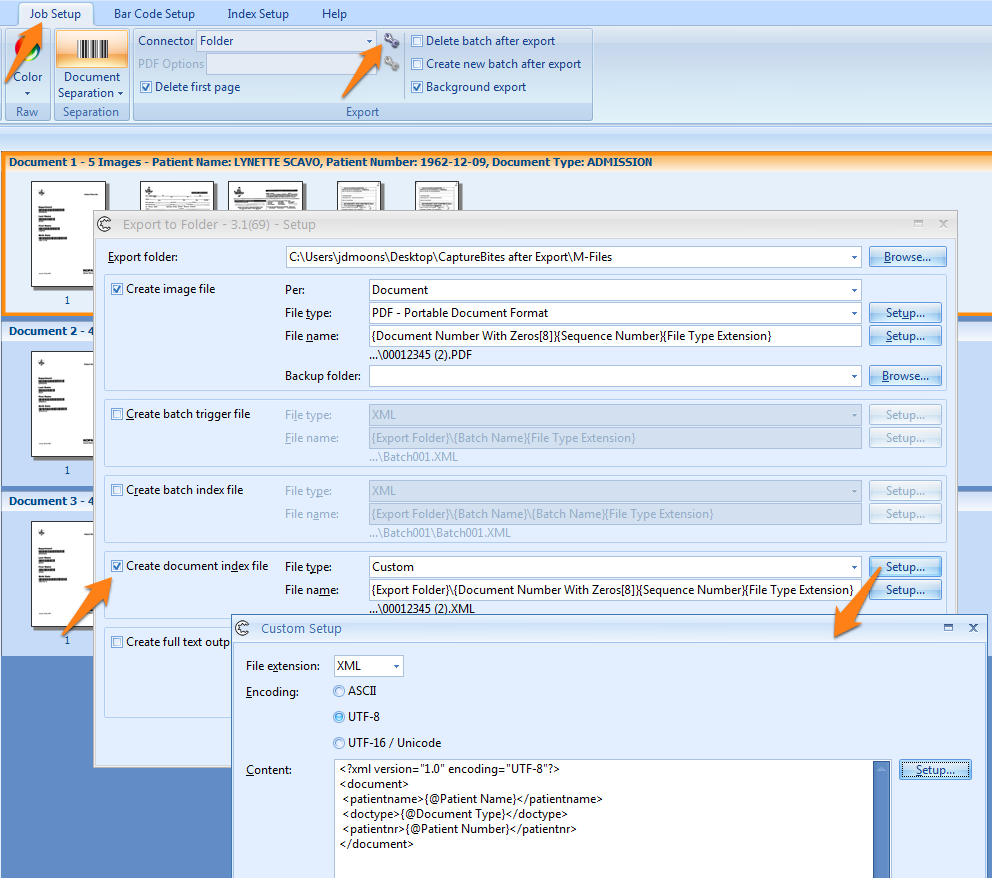
By default, M-Files expects XML files structured like this:
<?xml version="1.0" encoding="UTF-8"?>
<document>
 <patientname>L. Scavo</patientname>
 <doctype>Admission</doctype>
 <patientnr>123456789</patientnr>
</document>
On the right side, you can see how this output is configured in the CaptureBites Folder connector. Press the image to see a larger version.
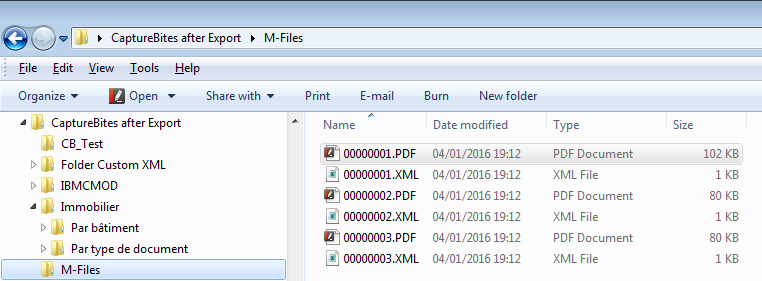
For more information about importing PDF files with associated metadata into M-Files, search the web for “Importing metadata from XML files to M-Files”
-
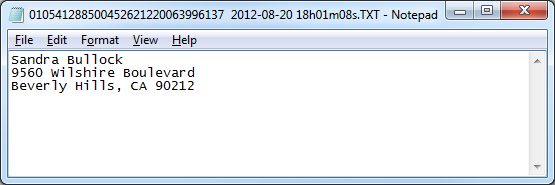
Full text output of your scanned pages
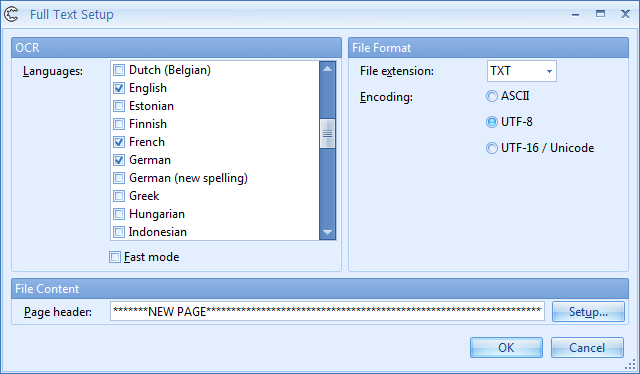
Next to PDF and TIFF files, you can also generate full text output for each scanned page. You have the choice to generate a text file per page or per document. You can then use the text file to feed a full text indexing system or extract specific data from it.
Original Image
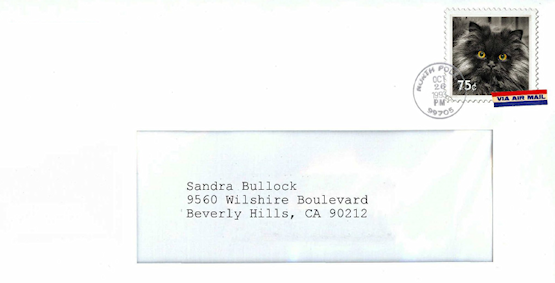
Full Text Output
Full Text Output Setup
-
Split PDF files to a maximum size
Many systems can only handle a specific file size which cannot exceed a defined maximum.
Examples
- Generated PDF files need to be emailed and file size should not exceed 10MB
- PDF Files need to accessed through Citrix and should not exceed 5MB
- Overall responsiveness of the Document Management decreases if the file size exceeds 15MB
You can define
- The maximum size of a PDF files and automatically larger PDF files will be split in Parts
- Number of pages is optimized per part to obtain the maximum possible number of pages per part
- Precise definition how parts should be named
- Option to suppress the part name if the whole document first in the defined maximum size
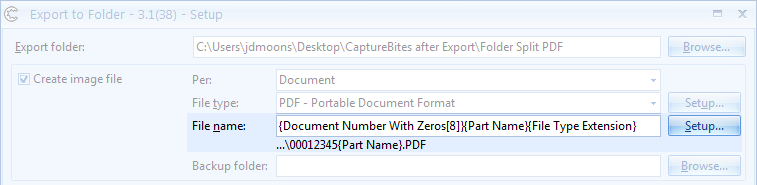
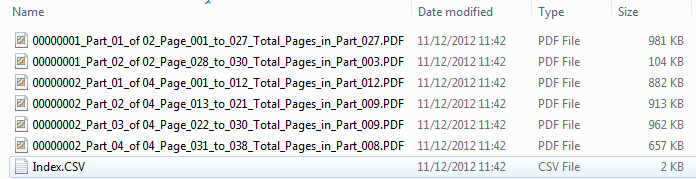
Result after splitting
The way to name the parts after splitting is completely configurable. You can also suppress the part section from the file name if the document completely fits in a single file.
-
Configure PDF files the way you want them
The PDF document format is increasingly popular. You can mix color and black and white images in a single PDF file, include a searchable OCR text layer, generate super compressed color images, etc. And all PDF files can be displayed with the free Adobe reader.
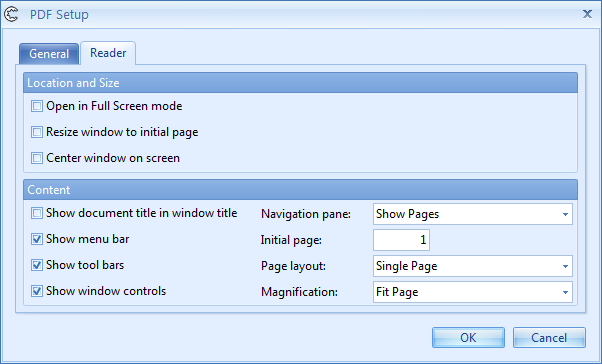
For example you can configure your PDF files to always open in page fit mode with the thumbnail panel open.
-
Output Searchable PDF or PDF/A
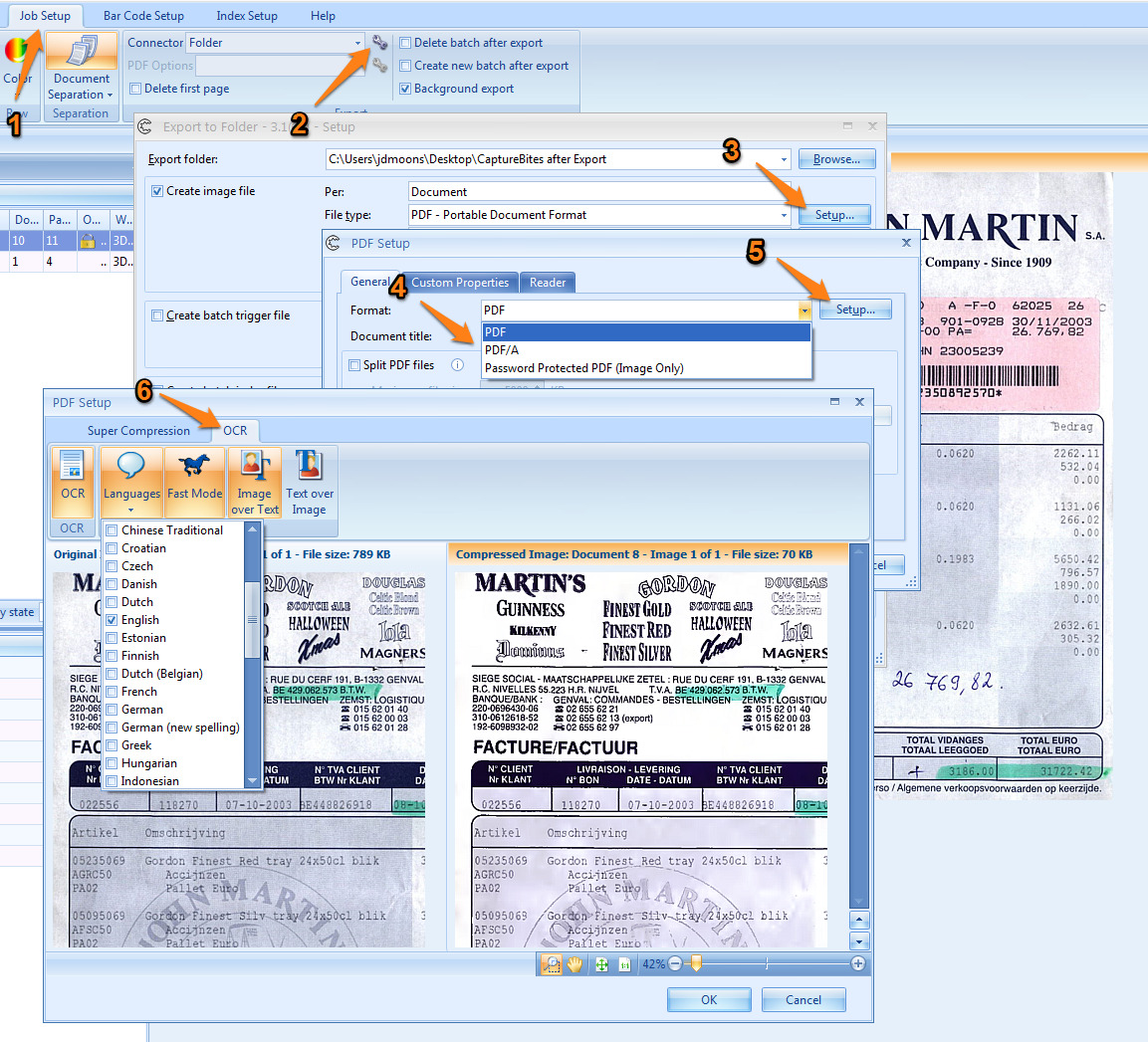
You can output PDF or PDF/A and make the PDF files searchable by enabling OCR.
2 Select the Folder connector and press the setup button
3 Select PDF as the file type and press Setup
4 Here you can decide whether you want to output standard PDF or PDF/A files.
5 Press Setup to enable OCR and generate Searchable PDF files.
6 Set desired OCR options. Options are self-explanatory
-
Output color compressed PDF Files with the file size of black & white
Color scans look more realistic and represent your documents better showing all mark-ups, logos and highlights in their original color. However color scans are 10 to 20 times larger than black & white scans.
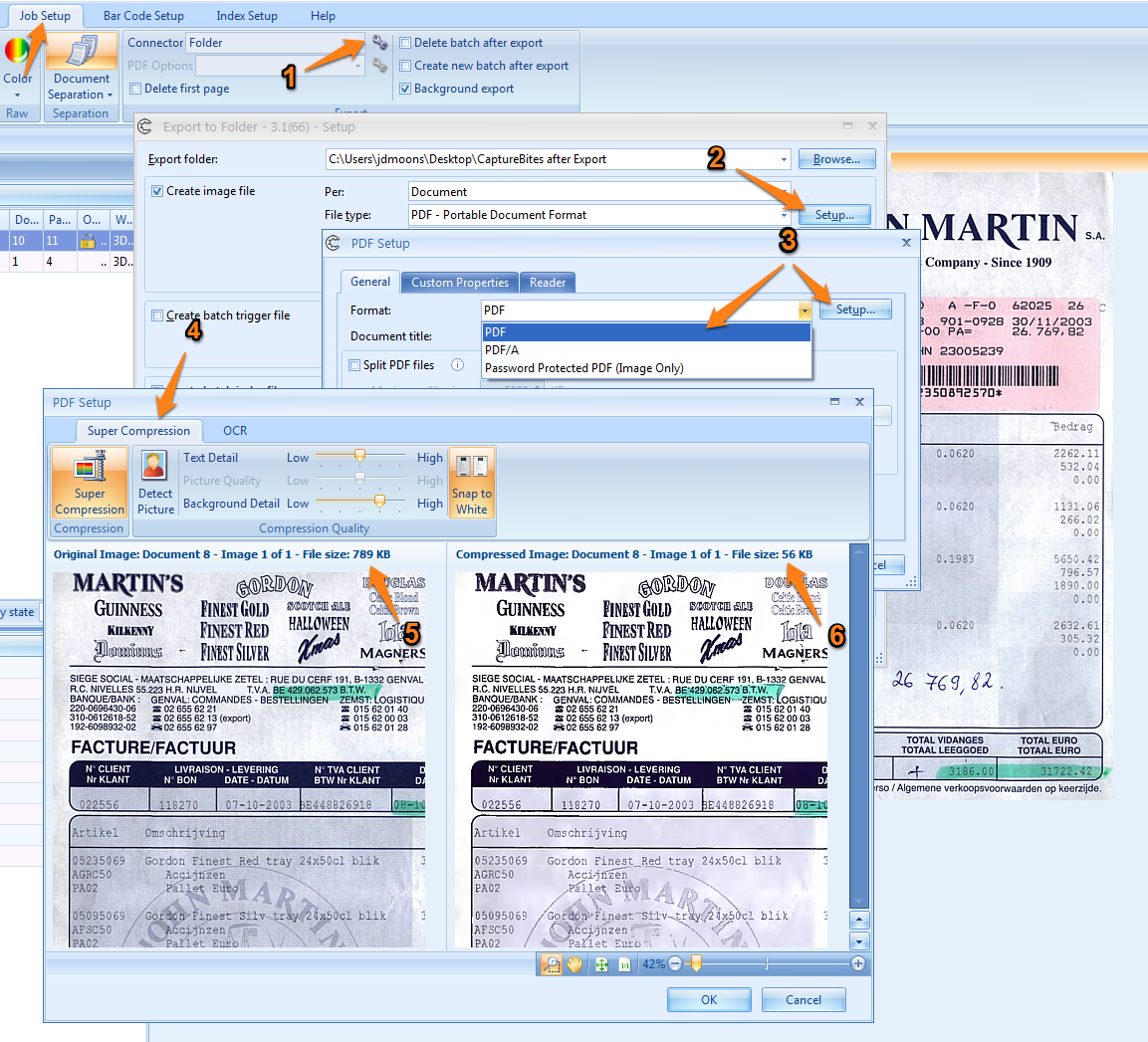
With the Kofax color super compression technology, you can generate color PDF files with the file size of black & white images!
2 Select PDF as the file type and press Setup
3 Select standard PDF or PDF/A files and press Setup to access super compression settings.
4 Set desired PDF super compression options
5 In the viewer on the left side, you see the original uncompressed image. In our example, the file size is 789 KB.
6 In the viewer on the right side, you see the super compressed image which is in our example 14 times smaller than the original (56 KB).
It even looks better than the original color image because the super compression feature has an option to snap the background to white to increase the readability.
-
Bookmarked PDF Files
With the CaptureBites Folder connector you can export a complete Kofax Express Batch to a single bookmarked PDF file.
For example, if you have a patient record consisting of many sub sections, like Admission, Bloodwork, Pharmacy, Medication, Surgery etc., you can create a batch with for each section a document in Kofax Express.
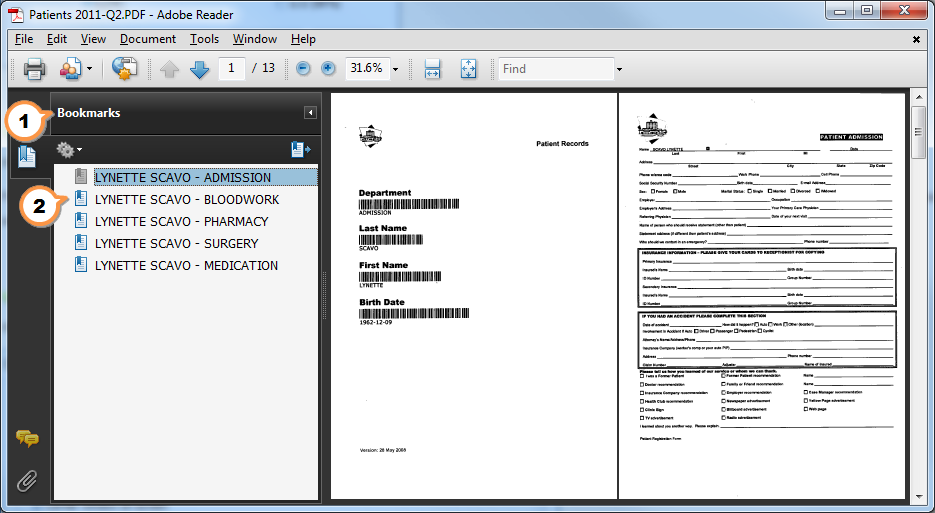
 You can configure the Folder Connector to automatically open the PDF with the Bookmark navigation pane open
 The complete Batch is saved as a single PDF and each document is bookmarked. In this example, we have used a Kofax Express index field combining the Patient Name and Department to automatically name the bookmark. A simple click on any of the bookmarks instantly displays the first page of the corresponding document.
-
Predefine how the Adobe reader displays your PDF files
With the CaptureBites Folder connector you can define precisely how your PDF files open in the Adobe Reader
-
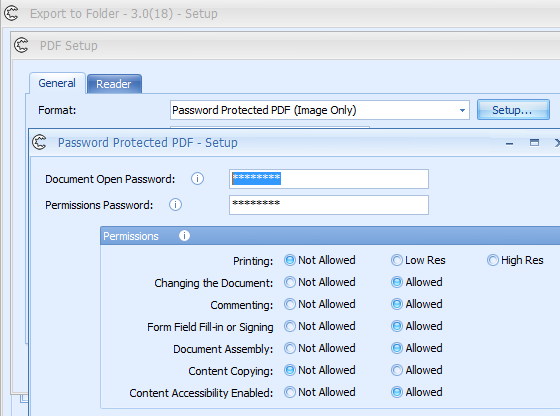
Password Protected PDF Files
Password protected PDFs are often used for confidential documents, such as legal documents, medical records, financial statements etc.
The PDF file format allows two levels of password protection.
One level is used to view the PDF using the” Document Open” password, another level is used to set permissions, such as copying, printing, commenting, editing the PDF document etc.
-
Uncompressed and LZW Compressed TIFF files
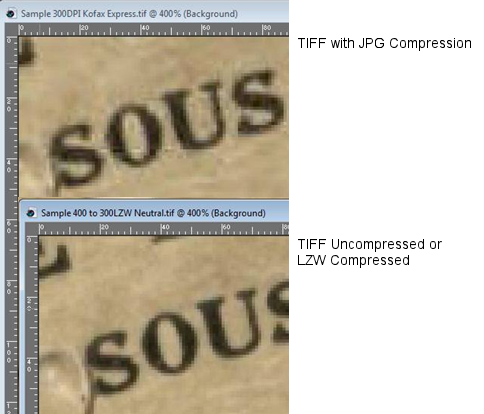
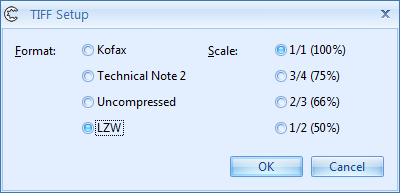
Sometimes you want the best image quality and save your files as uncompressed TIFF files or LZW compressed TIFF files (LZW reduces the file size with 50% without loss of image quality).
For even better quality, you can scan in one or more resolution steps higher then your desired output.
During export we scale the image down to the desired output resolution resulting in super high quality images.
-
About the demo jobs
After downloading the CaptureBites Folder Export connector, install it, open Kofax Express and find sample jobs called:
- CB Folder Custom XML
- CB Folder Full Text Output
- CB Folder PDF Bookmarks
- CB Folder PDF with Password
- CB Folder Split PDF
Each of the jobs, include a sample batch. Export the sample batch and find the result on your desktop in a folder called “CaptureBites after Export”.
The “CaptureBites Folder PDF with Password” uses Open Password = CapBites and Permissions Password = BitesCap.
Combine this product with CaptureBites MetaTool for advanced index extraction and more
Use this product in combination with CaptureBites MetaTool for advanced index extraction, keyword document separation, floating data extraction, multi-field and drill down database lookup and other advanced functionality.
To learn more about MetaTool, press any of the feature buttons below.
The MetaTool presents itself as a standard Kofax Express export connector and passes through extracted data and processed images to an export destination of choice such as Email, Folder Structure, FTP Server, Database, MS SharePoint Server & Online, Alfresco, OpenText Content Server, Xerox DocuShare, or other DMS systems.
About the download and included demo jobs
The download button on top of this page installs a functional version of this CaptureBites product. It also includes some demo images and a demo job to show the functionality.
In demo mode, a demo seal will be stamped in all exported images. You can switch the demo version to full production mode by entering an activation code which you can purchase from our partners. You can continue using any of the jobs you configured in demo mode after activation of the software.
If you don't have Kofax Express yet, you can download a trial from here.